If you have been building or managing a WordPress site for any amount of time, you have almost certainly come across WordPress shortcodes — even if you did not know that is what they were called. That little [contact-form-7 id="123"] or
sitting inside a page or post? That is a shortcode. And once you understand how they actually work, a lot of things about WordPress start to make more sense.
This guide breaks down everything you need to know as a beginner — what shortcodes are, how to use them, where they show up in real builds, and when you should think twice before relying on them.
What Are WordPress Shortcodes?
A shortcode is a small piece of text wrapped in square brackets that WordPress replaces with actual content or functionality when a page loads. Instead of writing a block of HTML or PHP every time you want to embed something complex, you drop in a shortcode and WordPress handles the rest behind the scenes.
The concept is straightforward: the shortcode is a placeholder. WordPress sees it, runs the function attached to it, and outputs whatever that function returns — whether that is an image gallery, a form, a product grid, or something entirely custom.
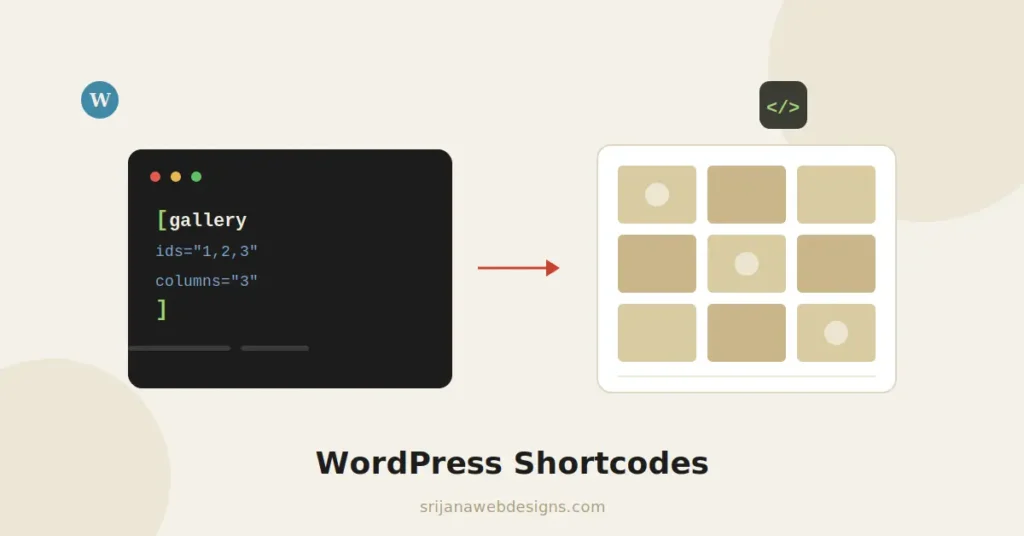
Here is what a basic shortcode looks like:
WordPress reads that, finds the gallery function, pulls the images with those IDs from your media library, and renders a three-column gallery in place of that single line. No HTML written by you. No PHP touched. That is the whole idea.
The Two Types of Shortcodes
All WordPress shortcodes fall into one of two categories:
Self-Closing Shortcodes
These work on their own with no closing tag. They usually pull in content or embed something from elsewhere.
[recent-posts count="5"]Enclosing Shortcodes
These wrap around content and do something to it — like styling it, hiding it, or formatting it in a specific way.
[button url="/contact"]Get in Touch[/button][highlight]This text stands out[/highlight]Most shortcodes you encounter as a beginner will be the self-closing kind — especially those generated by plugins.
The Six Built-In WordPress Shortcodes
WordPress ships with six native shortcodes out of the box. No plugins needed — they are available on every WordPress installation by default.
Creates an image gallery from your media library. The one you will use most often — especially on photography or portfolio sites.
Wraps an image with a formatted caption. Handles alignment and width so your image descriptions look consistent across the site.
Embeds a native audio player for MP3 or OGG files hosted on your server. No third-party service needed.
Embeds a video player for MP4 or WEBM files. You control the dimensions directly in the shortcode attributes.
Groups multiple audio or video files into an interactive playlist. Useful for podcast archives or video course pages.
Embeds external content from YouTube, Vimeo, and other oEmbed providers with precise dimension control.
The gallery shortcode is the one that actually gets used on real sites. The audio, video, and playlist shortcodes have largely been replaced by dedicated page builder widgets. But knowing all six exists saves you a support call when you encounter them in someone else’s site.
How Shortcodes Get Into Your Site: The Three Sources
As a beginner, shortcodes will enter your workflow from three different places. Knowing which source you are dealing with helps you troubleshoot faster when something breaks.
1. WordPress Core
The six native shortcodes above. Always available, no setup required.
2. Plugins
This is where the vast majority of shortcodes come from. When you install a plugin like WooCommerce, Contact Form 7, or a slider plugin, it registers its own shortcodes automatically. You find the shortcode in the plugin’s settings or dashboard, copy it, and paste it wherever you need it on the site.
For example, WooCommerce generates shortcodes like [woocommerce_cart] and [woocommerce_checkout] to create those essential store pages. Contact Form 7 gives you a unique shortcode for each form you build, like [contact-form-7 id="45" title="Quote Request"].
3. Custom Code
You or your developer can register completely custom shortcodes using PHP. This is where shortcodes become genuinely powerful — you can build a shortcode that pulls dynamic content, formats it exactly how you want, and makes it reusable across the entire site with a single tag.
The right place to add that custom PHP is not your theme’s functions.php file. That file gets overwritten every time your theme updates. A dedicated code snippets plugin is the proper approach — your code lives independently of the theme and survives every update safely.
How to Use a Shortcode in WordPress
Using a shortcode is genuinely simple once you know where to put it. Here are the three most common methods:
In the WordPress Block Editor (Gutenberg)
Click the + icon to add a new block. Search for “Shortcode” and select the Shortcode block. Type or paste your shortcode directly into the block. The page will render the output when you preview or publish.
In the Classic Editor
Simply type or paste the shortcode directly into the content area wherever you want it to appear. No special block needed — WordPress automatically detects and processes it on the front end.
In a Text Widget
Go to Appearance → Widgets, add a Text widget to your sidebar or footer, and paste the shortcode inside. By default, WordPress does not process shortcodes in text widgets. To enable it, you need one line added to your site’s code:
add_filter('widget_text', 'do_shortcode');This tells WordPress to scan widget text for shortcodes and process them just like it would in content areas.
Shortcodes Inside Elementor
If you are building with Elementor — which is how I build every client site as a freelance WordPress developer — shortcodes work a little differently than in the standard editor.
Elementor has a dedicated Shortcode widget in its panel. You drag it onto your canvas, paste your shortcode into the content field, and Elementor renders the output right inside the builder. It is one of the most underrated widgets in Elementor because it bridges the gap between Elementor’s visual system and any functionality that does not have a native Elementor widget.
Practical example: Say you have installed a plugin that generates a custom pricing table and outputs it via shortcode. Rather than leaving that page in the classic editor, you can build the entire page in Elementor and drop the pricing table shortcode into an Elementor Shortcode widget — keeping your layout consistent without sacrificing the plugin’s functionality.
That said, I always prefer native Elementor widgets over shortcode-based solutions when a proper widget exists. Native widgets give you full styling control inside the builder — padding, colours, responsive settings, hover states — all without touching code. Shortcode output often lands on the page as unstyled HTML that you then have to wrestle with in custom CSS. When the choice exists, go native.
If you want to understand how Elementor compares to other builders in terms of flexibility and workflow, I covered that in detail in my Elementor vs Divi comparison.
How to Create a Custom Shortcode
This is where shortcodes stop being a convenience feature and start being a real development tool. If you have even basic PHP knowledge, you can build shortcodes that do exactly what your site needs — nothing more, nothing less.
Here is a simple custom shortcode that displays the current year — useful for copyright notices that need to update automatically:
function my_current_year_shortcode() {
    return date('Y');
}
add_shortcode( 'current_year', 'my_current_year_shortcode' );
Drop [current_year] anywhere on the site and it always outputs the current year. No manual updates ever again.
Here is a more useful example — a shortcode with attributes that creates a reusable call-to-action button:
function my_cta_button( $atts, $content = null ) {
    $atts = shortcode_atts( array(
        'url'   => '#',
        'color' => 'primary',
    ), $atts );

    return '<a href="' . esc_url( $atts['url'] ) . '" class="btn btn--' . esc_attr( $atts['color'] ) . '">' . esc_html( $content ) . '</a>';
}
add_shortcode( 'cta_button', 'my_cta_button' );
Use it anywhere in your content like this:
[cta_button url="/contact" color="dark"]Book a Call[/cta_button]Two rules to always follow when writing custom shortcodes:
Always return, never echo Shortcode functions must return their output — never echo it. If you echo inside a shortcode function, the output appears at the top of the page regardless of where the shortcode is placed.
Always sanitize inputs and escape outputs Any value coming in through shortcode attributes is user input. Use esc_url() for links, esc_attr() for HTML attributes, and esc_html() for text. This is non-negotiable from a security standpoint.
Common Shortcode Problems and How to Fix Them
Even simple shortcodes can misbehave. Here are the issues that come up most often and exactly what to check:
The shortcode is showing as plain text
This almost always means one of three things: the plugin that registered the shortcode is deactivated, there is a typo in the shortcode name, or the template file is calling get_the_content() instead of the_content(). The fix for the last one is replacing it with apply_filters('the_content', get_the_content()) — that runs the content through WordPress’s filter chain, which is what actually processes shortcodes.
Output appears at the top of the page instead of inline
Classic sign that the shortcode function is using echo instead of return. Edit the function and change every echo to return.
The shortcode works on posts but not pages
Some page templates bypass the standard content filter. Check the template file and make sure content is being output through the_content() rather than a raw database call.
Shortcode not working inside a widget
Add add_filter('widget_text', 'do_shortcode'); to your site’s code as mentioned earlier. Without this filter, WordPress never looks for shortcodes inside widget content.
What Is Happening to Shortcodes With Gutenberg?
A lot of beginners wonder whether shortcodes are being phased out. The short answer: not entirely, but their role is shrinking. The WordPress block editor was built specifically to reduce dependence on shortcodes by giving every piece of functionality its own purpose-built block. Buttons, galleries, media embeds, columns — all of these used to require shortcodes or page builders. Now they are native blocks.
Plugin developers are increasingly building Gutenberg blocks alongside or instead of shortcodes. Contact Form 7, for example, now has a dedicated Gutenberg block so you no longer need to paste a shortcode to embed a form.
That said, shortcodes are not going anywhere soon. Millions of sites rely on them, the WordPress Shortcode API is still fully supported, and custom shortcodes remain one of the cleanest ways to add reusable functionality across a site without building a full Gutenberg block.
When Not to Use Shortcodes
Beginners often reach for shortcodes as the default solution for adding functionality. But there are situations where a shortcode is genuinely the wrong tool.
When a native block or widget already exists: If Gutenberg has a block for it or Elementor has a widget for it, use that. You get responsive controls, visual editing, and no dependency on a separate plugin or custom code.
When performance matters on that specific page: Some shortcodes — particularly those that run database queries or load external scripts — add real overhead. On high-traffic pages, that adds up. Check what a shortcode actually does before dropping it into a landing page.
When the output is impossible to style: Some plugin shortcodes output HTML designed for a different era of WordPress. If you spend more time fighting the CSS than you would have spent building the feature natively, the shortcode was the wrong choice.
When you are in a page builder and a native solution exists: This is the one I run into most often on client builds. The temptation is to grab a shortcode from a plugin because it is fast. But if I am already in Elementor, a native widget almost always gives a better result — more control, cleaner output, easier to maintain.
Final Thoughts
WordPress shortcodes have been around since version 2.5 and for good reason — they solve a real problem. They let you add complex, reusable functionality to any part of a site without touching template files or duplicating code. For beginners, understanding how they work unlocks a huge portion of what WordPress is actually capable of.
The key is knowing when they are the right tool and when something better exists. Use plugin shortcodes when no native alternative is available. Build custom shortcodes when you need reusable functionality across a site. And in a page builder environment, always prefer native widgets over shortcode-based workarounds when the option is there.
Shortcodes are not magic — but used correctly, they save real time and make complex sites significantly easier to manage.